You start a slideshow and the painting fills the television—but part of the frame is missing. A figure at the edge disappears, the artist’s name is cut off, or the image looks stretched. The artwork file may be fine. The television’s photo player is often enlarging it to fill a screen with a different shape.
The solution is usually to choose a display mode that keeps the whole image visible. The wording varies by television and photo app, but the basic choices are commonly described as fit, fill and zoom.
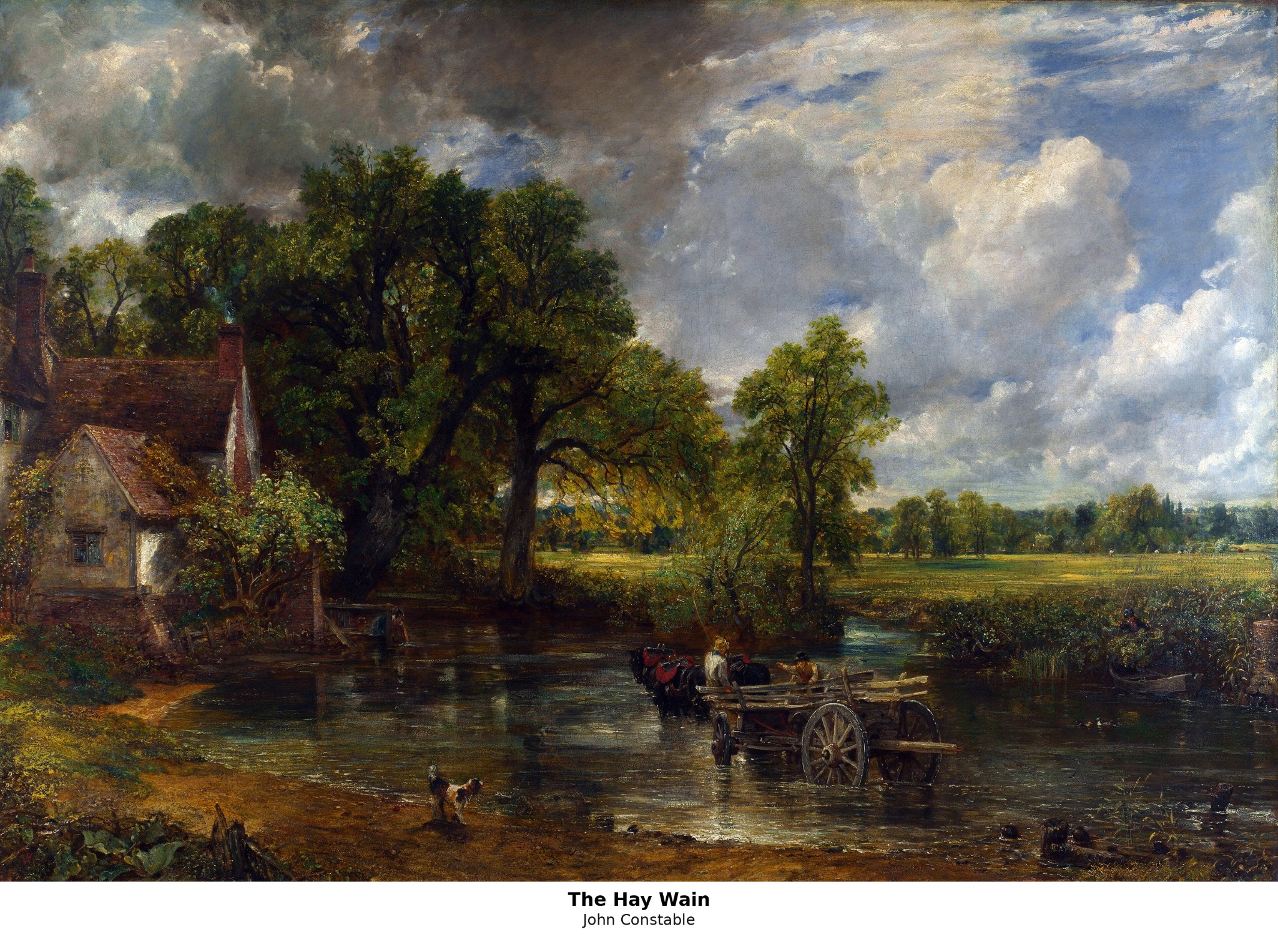
Why paintings and television screens have different shapes
Most modern televisions are wide rectangles. Paintings come in many proportions: tall portraits, nearly square scenes, broad landscapes and everything between. A photo player has to decide what to do with the extra screen area whenever the artwork and television do not share the same proportions.
It can show the entire image and leave unused space around it, or enlarge the image until the screen is full and crop whatever extends beyond the edges. Neither behavior means the USB or television is defective; it is a display choice.
What “fit” usually does
Fit—sometimes called contain, entire image, original or actual size—generally scales the picture until the whole file is visible. This is the best starting point when you want to preserve the painting’s composition and read a caption placed near an edge.
A tall or square painting may have open space at the sides. A very wide image may have space above and below. Those borders are evidence that the television is respecting the image rather than cutting it to match the screen.
What “fill” usually does
Fill enlarges the image until it covers the entire screen. When the shapes differ, parts of the image extend beyond the display and are cropped. Fill can create an edge-to-edge look, but it may remove details, signatures or caption text.
If a caption vanishes only after the slideshow starts, fill is a likely cause. Return to the photo player’s options and look for fit, original, entire image or a similar alternative.
Why “zoom” is rarely the right choice
Zoom deliberately magnifies the picture. It may be useful for examining a detail while you control the screen, but it is not a good default for an automatic gallery. Zoom can crop all four edges and may remain active for the next image.
If every painting suddenly looks too large, exit zoom or reset the photo-viewing display mode before restarting the slideshow.
Do not use stretch to remove borders
A stretch or wide mode can force an image into the television’s proportions without cropping. The tradeoff is distortion: circles become ovals, faces widen and the artist’s original composition changes. Preserving the complete image with modest borders is usually a better result than changing its shape.
Run a one-photo crop test
- Put one familiar JPEG on a USB drive. Choose a photo with important details close to all four edges.
- Open the television’s USB, media or photo player and display the image.
- Use the player’s options or settings menu to compare the available display modes.
- Select the mode that shows all four edges without stretching the picture.
- Start a short slideshow and confirm that the same mode remains active during playback.
Menu names and available controls differ by model and software version. If the player offers no display choice, consult the television’s manual for photo playback or test a compatible external media player. Our TV USB photo slideshow compatibility guide explains what to check before ordering.
If the caption is still cut off
First confirm that the caption appears when the file is viewed on a computer or phone. If it is present there but missing on the television, the player is cropping or overscanning the image. Check the photo player’s display mode first, then look for a screen-size setting such as screen fit, just scan, 1:1 or full pixel. Exact labels vary, so use the manual for your television rather than instructions for a different model.
If the entire image is visible but the caption is too small to read, move closer for the test and check whether the television is applying a lower-resolution preview. A different USB port or media player may help, but do not enlarge the image by cropping away its edges.
Choose preservation over a perfectly full screen
A little open space can be part of a faithful presentation. Museums do not trim a tall portrait to make it fit a landscape frame. On a television, fit mode follows the same principle: the shape of the artwork comes first.
Once the whole image is visible, choose a comfortable pace with our TV art slideshow timing guide, or use the general TV art setup guide to find your photo player.
Display classic art without cropping the files
The Family Gallery TV USB includes 1,000+ captioned classic paintings for $49 once, with no Family Gallery app or subscription. Your television’s photo player determines how the artwork files appear on screen.
Purchase the Family Gallery TV Art USB on Etsy, or email help@familygallerytv.com with a playback question.
Make Life Beautiful—and let every painting keep its full composition.